What to Delete When Your Phone Storage Is Full: A Practical Guide
Phone Storage Cleanup Calculator
Estimate how much storage space you could free up by following the practical steps from the article. Enter your phone's current stats to see potential savings.
Your phone keeps nagging you: "Storage full." You try deleting a few apps, but it barely moves the needle. You take more photos, record more videos, and download more music - and suddenly, your phone feels like it’s choking. You’re not alone. Most smartphones today come with 64GB or 128GB of storage, but those numbers vanish faster than you think. By the time you realize it, your phone is sluggish, apps crash, and you can’t even take a new picture. The good news? You don’t need to buy a new phone or pay for cloud storage right away. You just need to know what to delete - and where to look.
Start with your photos and videos
Photos and videos are the #1 space hogs on most phones. A single 4K video can eat up 350MB in just 30 seconds. A high-res photo from your latest iPhone or Android flagships can be 8MB or more. Over time, that adds up fast. Most people have thousands of photos stored, many of them duplicates, blurry shots, or screenshots you never meant to keep.
Open your gallery app and sort by date. Look for:
- Multiple shots of the same thing - you took 15 pictures of your coffee, but only one is clear
- Blurry or overexposed photos - your phone’s auto-capture mode often saves everything
- Screenshots of texts, receipts, or memes you’ll never need again
- Old vacation photos you’ve already backed up to the cloud
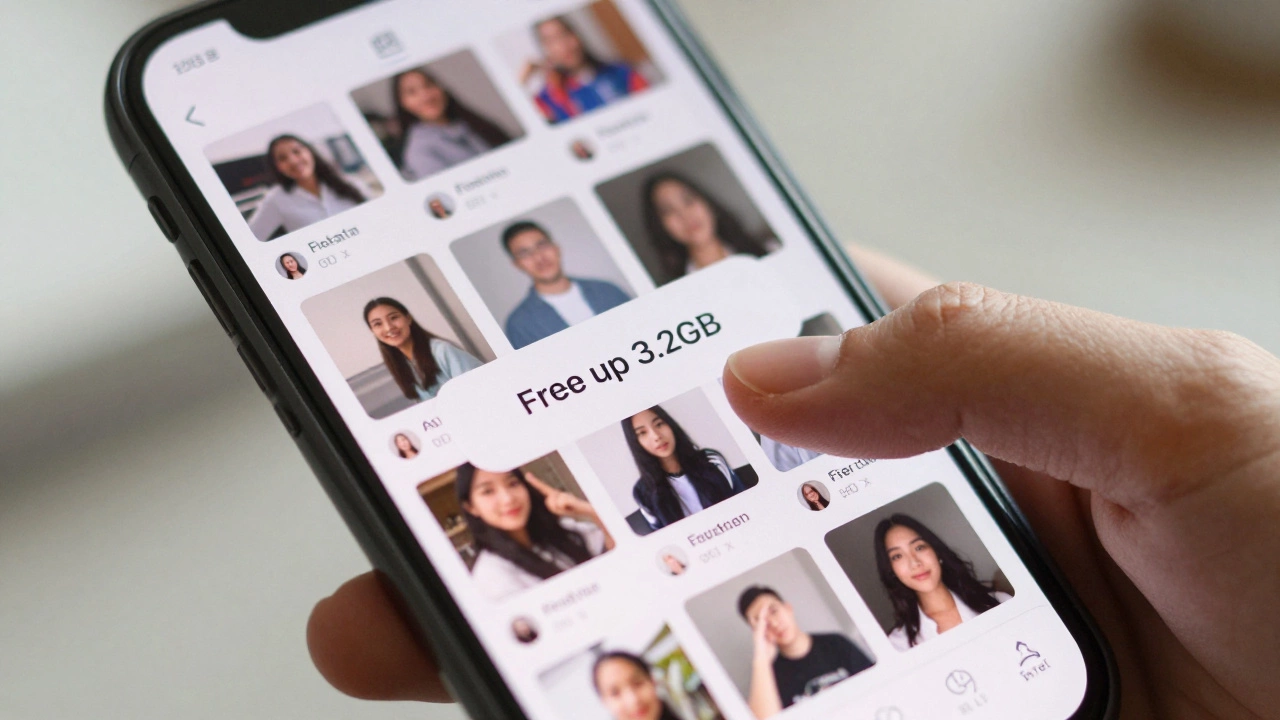
Use your phone’s built-in tool. On iPhones, go to Settings > Photos > Optimize iPhone Storage. On Android, open Google Photos and tap Free up space. It will automatically remove local copies of photos already uploaded to the cloud. You can also use apps like Google Photos or Apple Photos to find and delete duplicates automatically. Don’t just delete them - review them first. You might be surprised how many you don’t even remember taking.
Clear app cache and temporary files
Apps don’t just sit there. They collect data as you use them. Your social media apps store cached images, videos, and login tokens. Your browser saves cookies, history, and downloaded files. Your music app caches songs you’ve streamed. These files aren’t essential - they’re just there to make things load faster. But over time, they pile up.
On Android, go to Settings > Storage > Other Apps. Tap each app and select Clear Cache. You can do this for WhatsApp, Instagram, TikTok, YouTube - anything you use daily. On iPhones, go to Settings > General > iPhone Storage. You’ll see a list of apps sorted by how much space they use. Tap any app and look for Offload App or Delete App. Offloading removes the app but keeps your data. Delete removes everything.
Don’t forget your browser. Safari, Chrome, and Firefox all store gigabytes of cache. In Chrome, go to Settings > Privacy > Clear browsing data. Select Cache and Cookies, then clear. Do this once a month - it’s like giving your phone a digital spa day.
Uninstall apps you don’t use
You’ve downloaded over 100 apps in the past year. How many do you actually open weekly? Probably less than 20. The rest are just taking up space - and sometimes running in the background, draining your battery too.
Check your phone’s storage report. On iPhone: Settings > General > iPhone Storage. On Android: Settings > Storage > Apps. Look for apps using more than 500MB. That’s a red flag. Common culprits:
- Games you played once and forgot about
- Streaming apps you switched from (Netflix, Disney+, Spotify)
- Utility apps like flashlight, scanner, or battery savers - your phone already has better built-in tools
- Apps from promotions or giveaways you never needed
Don’t just uninstall - think about why you downloaded them. If you’re not using an app after 30 days, you probably won’t need it again. Delete it. You’ll free up space and reduce clutter.
Remove downloaded music and podcasts
Streaming music is the norm now. But if you still download albums or playlists for offline listening, you’re storing a lot of high-quality audio files. A single album in high quality can be 200-400MB. If you’ve downloaded 50 albums, that’s 10-20GB gone.
Go to your music app - Apple Music, Spotify, YouTube Music, or Amazon Music - and check your downloaded library. Delete anything you haven’t listened to in the last 3 months. Same with podcasts. If you’ve downloaded 100 episodes and only listen to 10, delete the rest. Most apps let you set automatic cleanup - turn it on. Spotify, for example, lets you set a limit like "Keep only 5GB of downloads" - perfect for saving space.
Delete old messages and attachments
Text messages and iMessages aren’t just words. They’re full of images, videos, voice notes, and PDFs. Group chats are the worst. A single family group chat can store hundreds of photos, memes, and videos from the last year. You might not even realize they’re still there.
On iPhone: Go to Settings > Messages > Keep Messages and change it from "Forever" to "1 Year". Then go to Messages > Attachments and delete large files. On Android: Open your messaging app, tap the three dots, select Storage, and review attachments. Delete anything you don’t need. You can also archive old conversations you want to keep but don’t need on your device.
Pro tip: If you use WhatsApp, go to Settings > Storage and Data > Manage Storage. It will show you the biggest media files - videos, voice notes, documents - and let you delete them in bulk. One user cleared 12GB just by deleting old WhatsApp videos from a group chat.
Check for duplicate files and hidden downloads
Your phone has hidden folders where files pile up unnoticed. Download folders, DCIM folders, and temporary folders from apps like Dropbox, Google Drive, or Telegram often hold copies of files you already have elsewhere.
Use your file manager (Files by Google on Android, Files app on iPhone) and go to Downloads. Sort by size. You’ll likely find:
- PDFs you downloaded once and forgot
- Old APK files from Android app installs
- ZIP files you extracted and never deleted
- Images saved from emails or web pages
Also check DCIM > Camera for duplicate photos. Some apps save photos in two places - your gallery and a separate folder. Delete the extras. Use a tool like Files by Google (Android) or Photos (iPhone) to scan for duplicates automatically. It finds them in seconds.
Use cloud backup smartly
Cloud storage isn’t magic. It doesn’t free up space unless you delete the local copies. iCloud, Google Photos, Dropbox, and OneDrive all let you upload files and then remove them from your phone. But you have to do it manually.
After uploading your photos to Google Photos, tap Free up space. After backing up your documents to iCloud, go to Settings > [Your Name] > iCloud > Manage Storage > Photos and turn on Optimize iPhone Storage. This keeps low-res versions on your phone and stores the originals online. You won’t notice the difference - but you’ll gain back gigabytes.
Don’t rely on cloud storage to solve everything. If you’re out of space, the cloud won’t help unless you actively move files out of your phone.

What NOT to delete
Not everything you think is safe to delete actually is. Avoid deleting:
- System apps (like Phone, Messages, Settings) - you can’t reinstall them easily
- App data for banking or password managers - you’ll lose access
- Messages with important receipts or confirmation codes
- Downloads from trusted apps like Uber, Airbnb, or your airline - you might need them offline
If you’re unsure, don’t delete it. Back it up first. Or move it to a computer or external drive. Better safe than sorry.
Set up automatic cleanup
Don’t wait until your phone is full again. Set habits now:
- Weekly: Clear browser cache and delete old downloads
- Monthly: Review app storage usage and uninstall unused apps
- Quarterly: Delete duplicate photos and old videos
- Annually: Clean out your cloud backups and delete anything older than 2 years
Turn on auto-delete features. In Google Photos, set it to delete backed-up photos after 30 days. In WhatsApp, set media auto-download to "Wi-Fi only" and limit video quality. These small changes prevent future clutter.
Final checklist: What to delete today
Here’s a simple 5-minute action plan:
- Open your gallery - delete 20 blurry or duplicate photos
- Go to Settings > Storage > Apps - uninstall 2 apps you haven’t opened in 3 months
- Open Google Photos or iCloud Photos - tap "Free up space"
- Check your Downloads folder - delete 5 old files
- Open WhatsApp or Messages - delete 10 old media attachments
Do this once, and you’ll likely free up 2-5GB. Do it monthly, and you’ll never see "storage full" again.
Why does my phone say storage is full even after deleting files?
Sometimes, deleted files don’t disappear right away. They’re marked for deletion but still take up space until the system reclaims them. Restart your phone - that forces a cleanup. Also, check for hidden caches in apps like Instagram or TikTok. Even after you delete photos, the app might still store temporary files. Clear app cache manually if the problem persists.
Should I buy more storage or just delete things?
Delete first. Most people free up 10-20GB just by cleaning up photos, apps, and downloads. Upgrading storage costs money and doesn’t fix the habit of hoarding files. If you’ve cleaned everything and still need more space, then consider a phone with more storage - but only after you’ve tried the free fixes.
Can I delete system updates to save space?
No. System updates are critical for security and performance. You can’t delete them, and you shouldn’t try. If an update is taking up space, it’s because your phone is preparing for the next one. Wait until the update is fully installed - then restart. The old files will clear automatically.
How often should I clean my phone storage?
Every month is ideal. Set a reminder on your calendar. Spend 10 minutes reviewing your storage usage, uninstalling unused apps, and clearing cache. If you’re a heavy photo or video user, do it every two weeks. Consistency prevents panic when storage hits 95%.
Do cloud backups count as free space?
Only if you delete the local copies. Uploading photos to iCloud or Google Photos doesn’t free up space on your phone - unless you turn on "Optimize Storage" or click "Free up space." The files stay on your device until you remove them. Cloud storage is a backup, not a space-saver.
Next steps
After you’ve cleaned up, take a moment to set up automatic cleanup tools. Enable photo backup with auto-delete. Turn off auto-download for media in messaging apps. Limit your app installations. Your phone will thank you. And next time you see "Storage full," you’ll know exactly what to do - and how to avoid it again.